FreeCAD MCP 插件

by ATOI-ming

FreeCAD MCP 插件将模型控制协议(MCP)集成到 FreeCAD 中,支持通过 TCP 服务器和客户端接口实现模型创建、宏命令执行以及视图管理的自动化。需要在环境中安装外部 Python 依赖项 'mcp-server>=1.2.0' 和 'httpx>=0.24.1'。

Developer toolsstdioCommunity

Repository-wide counts · Cached 2025-11-05

Overview

The FreeCAD MCP 插件 MCP server is a publicly available project. Review the upstream repository for installation instructions, supported tools, compatibility, permissions, and current maintenance status.

Configuration

Configuration, transport, authentication, and runtime requirements vary by project. Open the repository before connecting and use the smallest set of credentials and permissions required.

Open the FreeCAD MCP 插件 repository to read the latest documentation.

KEEP EXPLORING

Compare source, connection, and authentication details before choosing an implementation.

View the complete category

模型上下文协议服务器

modelcontextprotocol

Community

一组用于模型上下文协议(MCP)的参考实现,展示了对大型语言模型(LLM)工具和数据源的安全且受控的访问方式。

Context7 Platform - Up-to-date Code Docs For Any Prompt

upstash

Community

Context7 MCP server providing up-to-date, version-specific documentation and code examples for libraries, enabling coding agents to fetch accurate docs and code snippets. Requires an API key for higher rate limits, passed via CONTEXT7_API_KEY header.

Playwright MCP

Microsoft Corporation

Community

A Model Context Protocol (MCP) server that provides browser automation capabilities using Playwright. Enables LLMs to interact with web pages through structured accessibility snapshots, bypassing the need for screenshots or visually-tuned models.

AIHawk

feder-cr

Community

AIHawk is an anti detect browser and web browsing agent, open source, with an MCP server for coding agents: undetected, no captchas, no blocks. It requires an OpenRouter API key for the standalone web UI mode, which can be provided via the --openrouter-key flag or the OPENROUTER_API_KEY environment variable or a .env file in the running directory.

FROM THE SOURCE

Repository README

Build-time snapshot · Retrieved 2026-10-05

View original

FreeCAD MCP Plugin

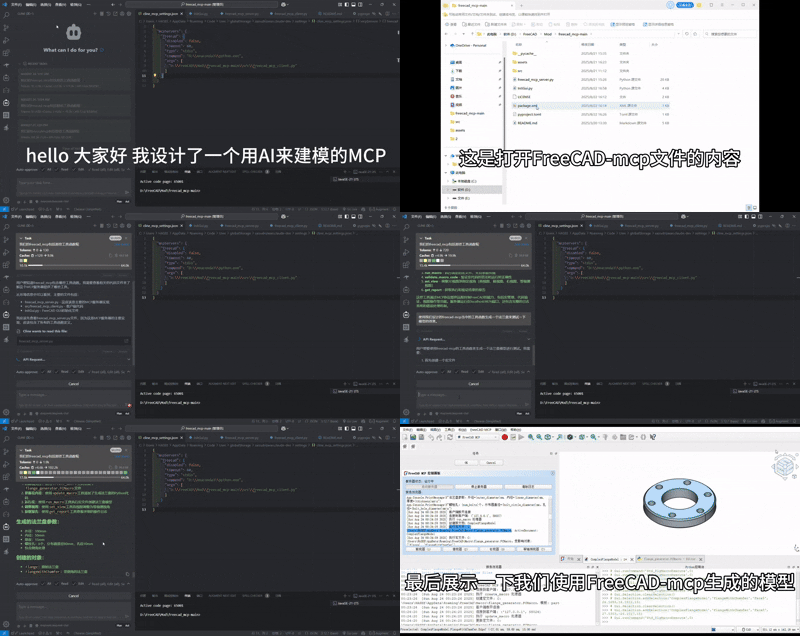
The FreeCAD MCP plugin integrates the Model Control Protocol (MCP) into FreeCAD, enabling automation of model creation, macro execution, and view management through a server-client architecture. It provides a GUI control panel and a command-line client to streamline FreeCAD workflows, supporting tasks like creating/running macros, adjusting views, and integrating with external tools (e.g., Claude, Cursor, Trace, CodeBuddy).

FreeCAD MCP Icon

Table of Contents

Features

The FreeCAD MCP plugin (v0.1.0) offers the following features:

  • MCP Server: Provides a GUI control panel (FreeCADMCPPanel) and processes commands like create_macro, update_macro, run_macro, set_view, and get_report (implemented in freecad_mcp_server.py).
  • MCP Client: Command-line tool to send commands via stdio or TCP, manage .FCMacro files (create, update, run, validate), and control FreeCAD remotely (implemented in freecad_mcp_client.py).
  • Macro Normalization: Automatically adds imports (FreeCAD, FreeCADGui, Part, math) and post-execution steps (recompute, view adjustment) for macros.
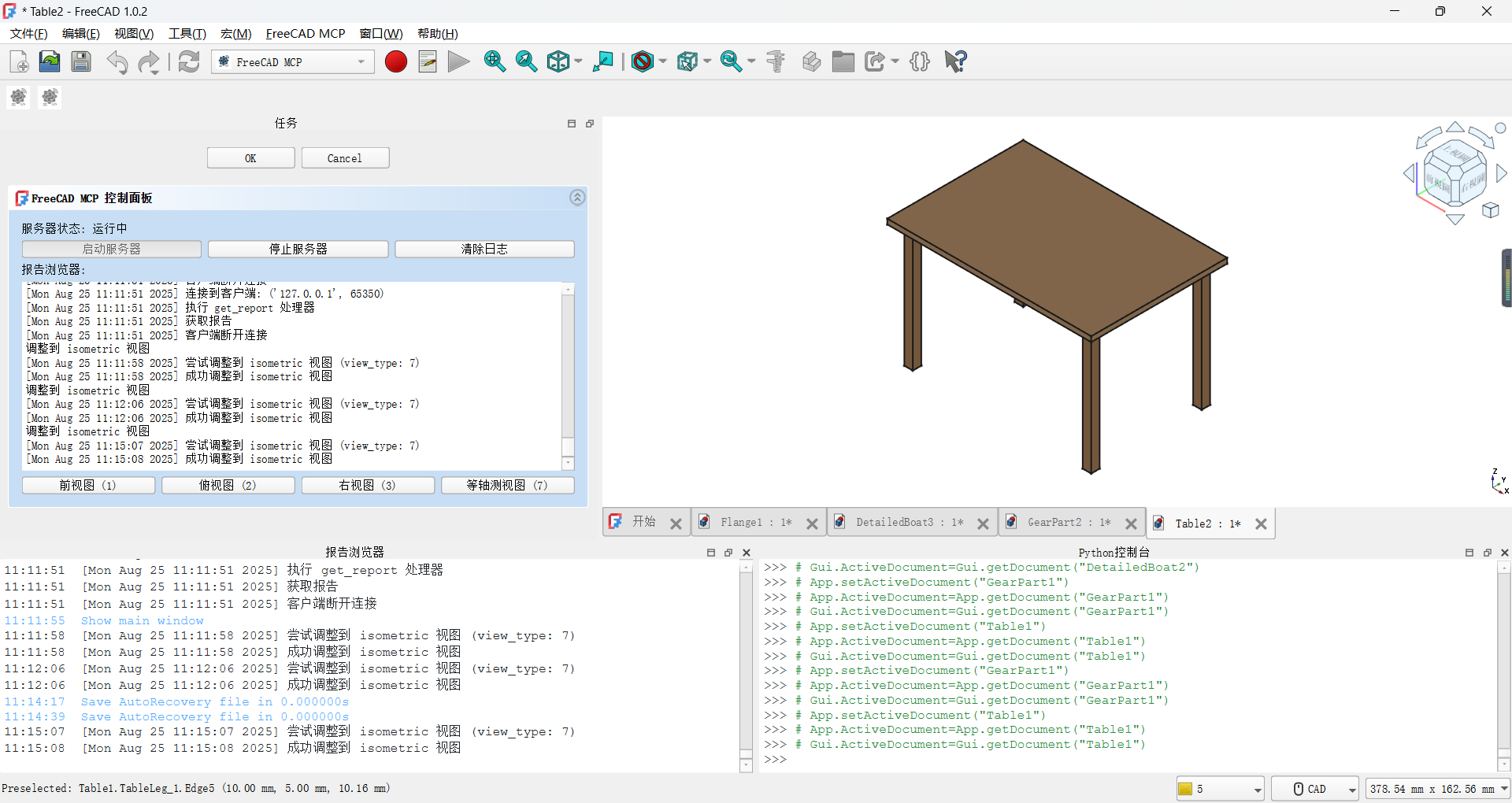
  • GUI Control Panel: Includes buttons to start/stop the server, clear logs, and switch views (front, top, right, axonometric).
  • Logging System: Records messages and errors to freecad_mcp_log.txt in the temporary directory (e.g., %TEMP%\freecad_mcp_log.txt) and a GUI report browser (100-line limit).
  • Workbench Integration: Adds a FreeCADMCPWorkbench with toolbar and menu commands (implemented in InitGui.py).
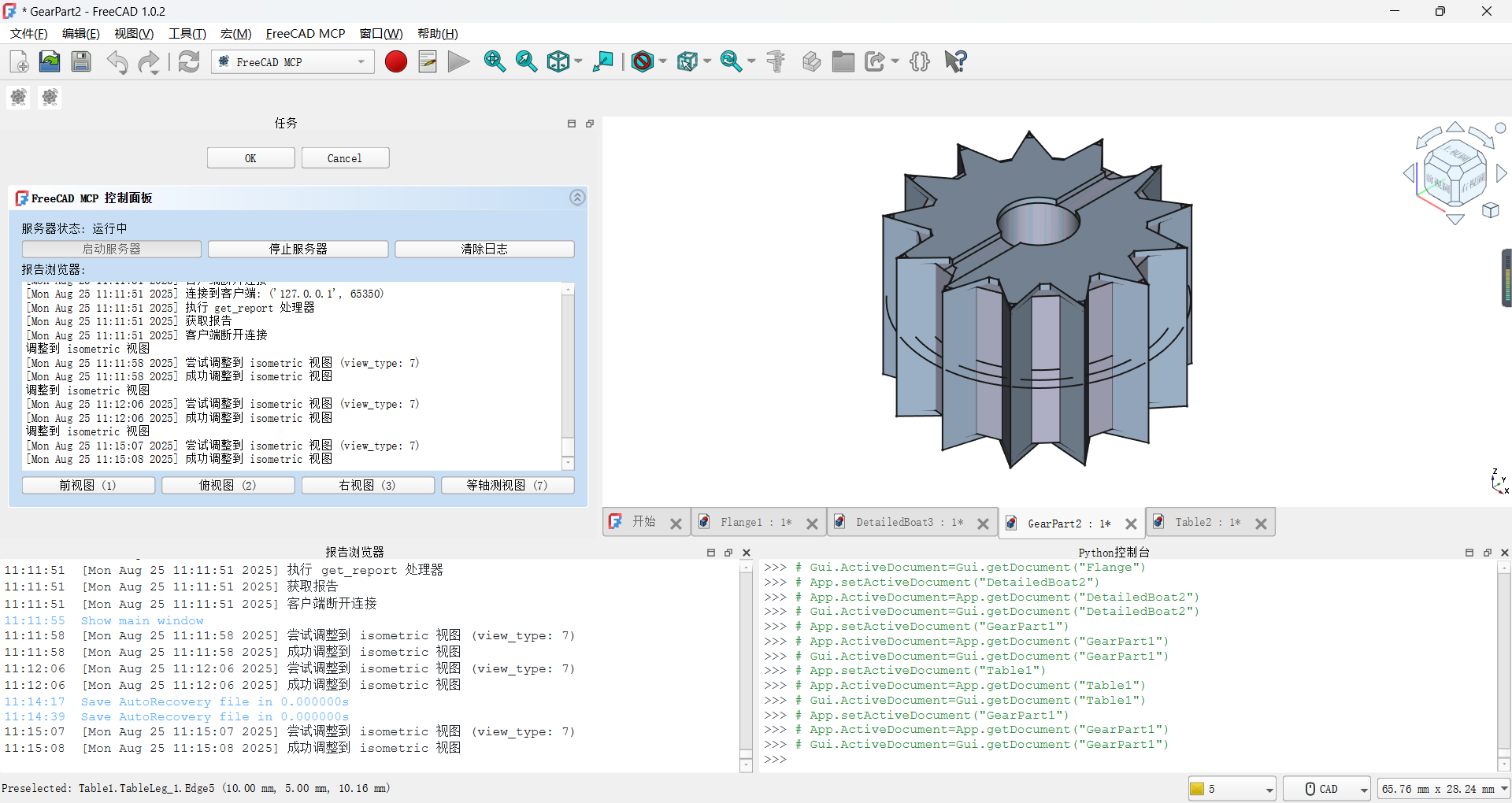
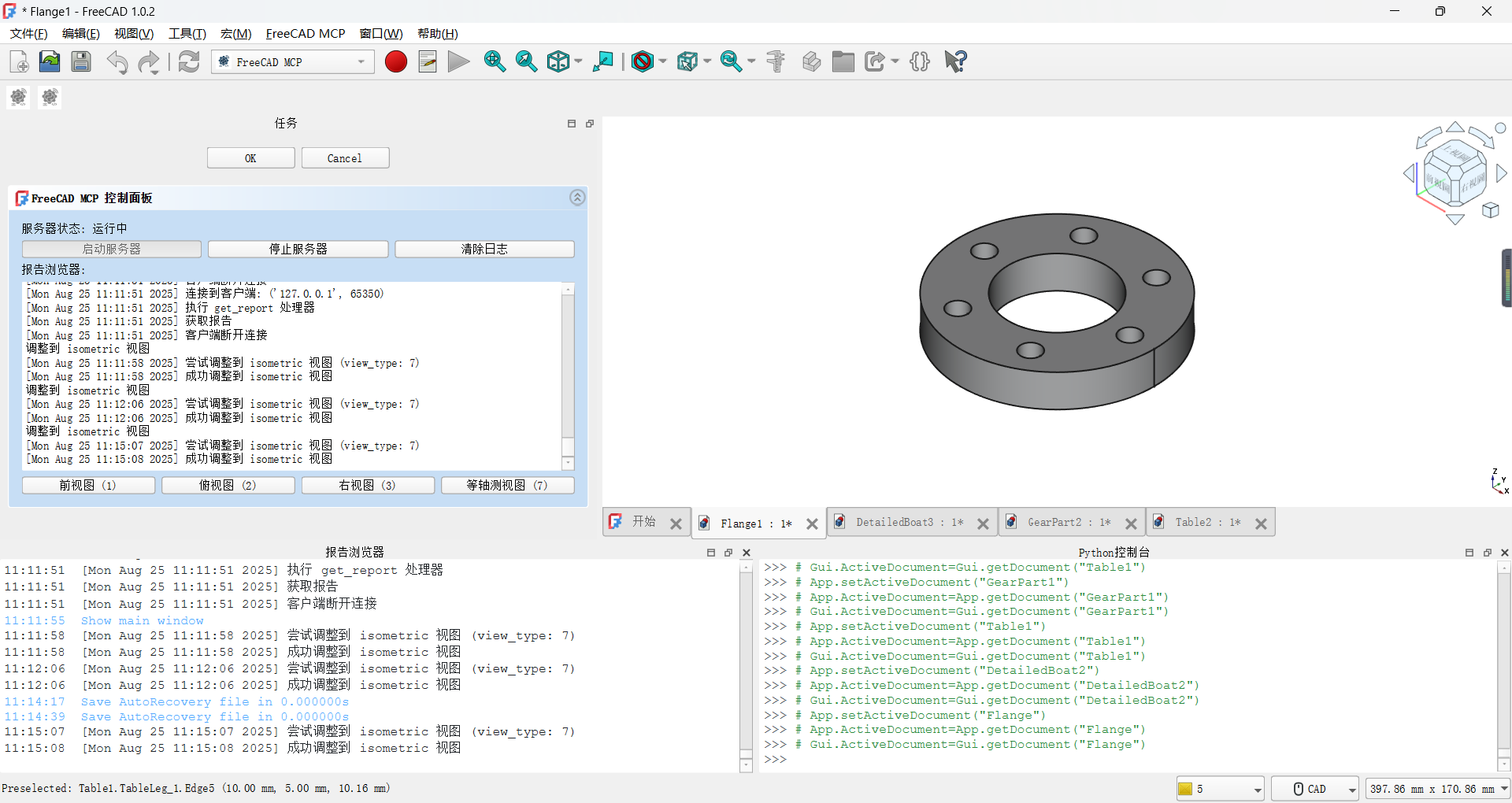
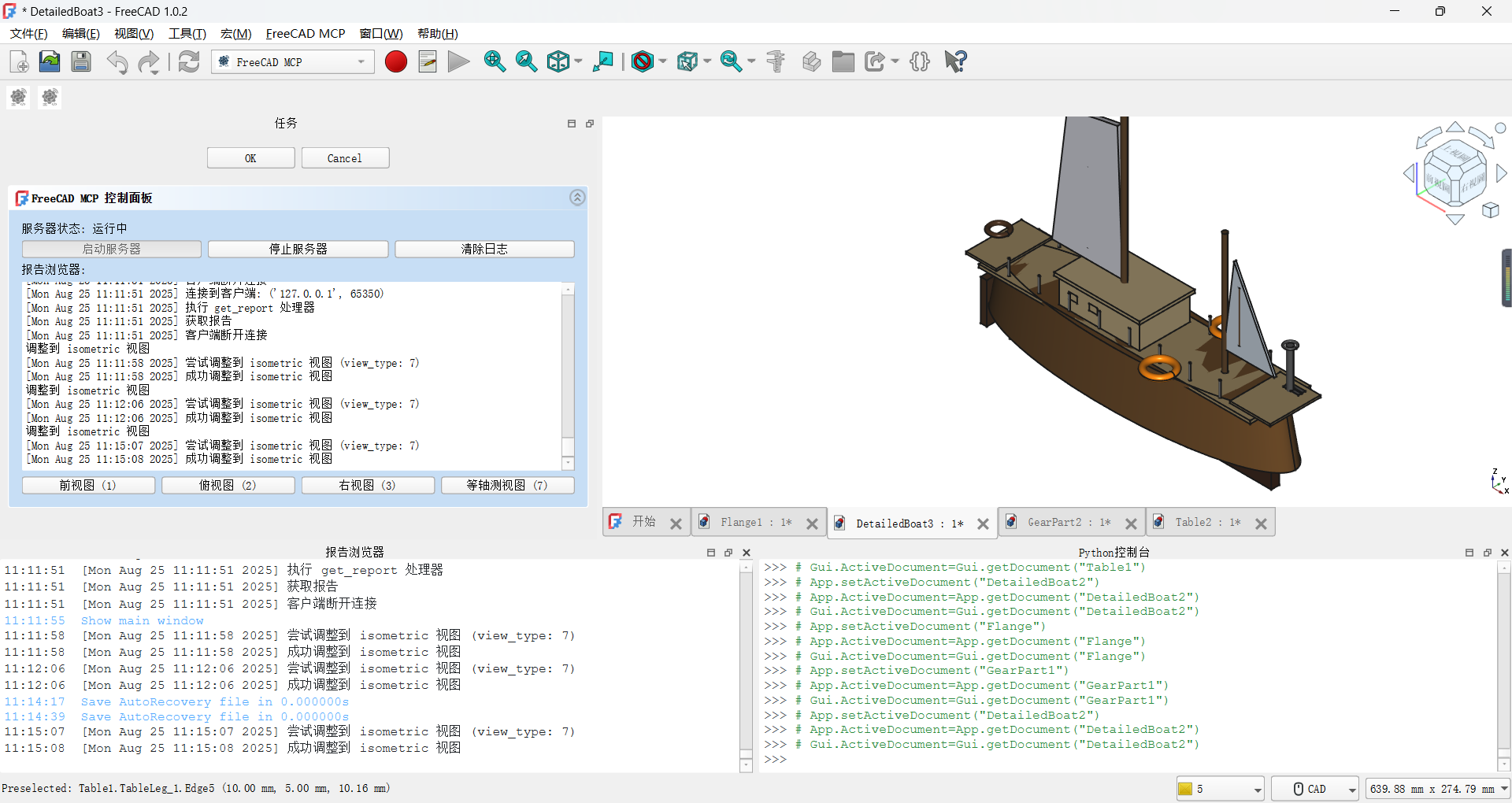
  • Visual Assets: Includes workbench icon (icon.svg), example models (gear.png, flange.png, boat.png, table.png), and demo animation (freecad.gif, freecad.mp4).

Watch the demo animation: Download the demo video: FreeCAD MCP Demo MP4

Quick Start

  1. Install the plugin (see Installation).
  2. Launch FreeCAD and switch to the FreeCAD MCP workbench.
  3. Open the control panel (FreeCAD_MCP_Show) and click "Start Server."
  4. Run an example macro:
    python D:\FreeCAD\Mod\FreeCAD-MCP-main\src\freecad_mcp_client.py --run-macro gear.FCMacro --params '{"radius": 15}'
    
  5. View the result: A gear model is generated and displayed in axonometric view.

Installation

Prerequisites

  • FreeCAD: Version 0.21 or higher, Download FreeCAD. Select the version for your operating system.
  • Python: Version 3.12+ (included with FreeCAD or installed via Anaconda).
  • Anaconda (recommended for dependency management): Download Anaconda. Select the version for your operating system.
  • Python Dependencies:
    • Required packages: mcp-server (specified in pyproject.toml).
    • Installation commands:
      # use system Python
      pip install mcp-server
      
    • Verify installation:
      pip show mcp-server 
      
      Ensure mcp-server version .

Installation Steps

  1. Clone the Repository:

    git clone https://github.com/ATOI-Ming/FreeCAD-MCP.git
    
  2. Copy to FreeCAD Mod Directory: Copy the FreeCAD-MCP folder to:

    • Windows: D:\FreeCAD\Mod\FreeCAD-MCP
    • Linux: ~/.local/share/FreeCAD/Mod/FreeCAD-MCP
    • macOS: ~/Library/Application Support/FreeCAD/Mod/FreeCAD-MCP
    # Windows example
    xcopy FreeCAD-MCP D:\FreeCAD\Mod\FreeCAD-MCP /E /H /C /I
    

    Note: Adjust D:\FreeCAD\Mod based on your FreeCAD installation path.

  3. Launch FreeCAD:

    • Open FreeCAD and switch to the FreeCAD MCP workbench (icon: assets/icon.svg).
    • Verify that FreeCAD-MCP is loaded in Edit > Preferences > Add-ons.
  4. Verify Installation:

    • Click FreeCAD_MCP_Show to open the control panel.
    • Check the temporary directory (e.g., %TEMP%\freecad_mcp_log.txt) for startup messages.

MCP Configuration

Configure the MCP client to communicate with FreeCAD via stdio or TCP.

  1. Create Configuration File: Create mcp_config.json in D:\FreeCAD\Mod\FreeCAD-MCP-main\src\:

    {
        "mcpServers": {
            "freecad": {
                "disabled": false,
                "timeout": 60,
                "type": "stdio",
                "command": "D:\\Anaconda3\\python.exe",
                "args": ["D:\\FreeCAD\\Mod\\FreeCAD-MCP-main\\src\\freecad_mcp_client.py"]
            }
        }
    }
    

    Note:

    • Adjust paths based on your system:
      • Anaconda Path: e.g., C:\Anaconda3\python.exe (Windows), /home/<user>/anaconda3/bin/python (Linux), /Users/<user>/anaconda3/bin/python (macOS).
      • FreeCAD Mod Path: e.g., C:\Users\<YourUser>\AppData\Roaming\FreeCAD\Mod\FreeCAD-MCP (Windows), /home/<user>/.local/share/FreeCAD/Mod/FreeCAD-MCP (Linux), /Users/<user>/Library/Application Support/FreeCAD/Mod/FreeCAD-MCP (macOS).
    • For TCP communication, set "type": "tcp", add "host": "localhost", and "port": 9876.
  2. Run the Server:

    • GUI Method: In the FreeCAD MCP workbench, click FreeCAD_MCP_Show and then "Start Server."
    • Command-Line Method:
      conda activate freecad_mcp
      python D:\FreeCAD\Mod\FreeCAD-MCP-main\src\freecad_mcp_server.py
      
  3. Verify Server:

    • Check %TEMP%\freecad_mcp_log.txt for a "Server started" message.
    • Test a client command:
      python D:\FreeCAD\Mod\FreeCAD-MCP-main\src\freecad_mcp_client.py --get-report
      

Usage

GUI Usage

  1. In FreeCAD, switch to the FreeCAD MCP workbench (icon: assets/icon.svg).
  2. Click FreeCAD_MCP_Show to open the control panel (FreeCADMCPPanel).
  3. Use the control panel:
    • Start/Stop Server: Control the MCP server.
    • Clear Logs: Clear the report browser and %TEMP%\freecad_mcp_log.txt.
    • View Switching: Select front, top, right, or axonometric views.
  4. Run a macro:
    • Click FreeCAD_MCP_RunMacro, select an .FCMacro file, and execute it with automatic normalization.

Command-Line Usage

  1. Activate the Anaconda environment:
    conda activate freecad_mcp
    
  2. Run client commands:
    python D:\FreeCAD\Mod\FreeCAD-MCP-main\src\freecad_mcp_client.py <command>
    
    Examples:
    • Create macro: --create-macro my_macro --template-type part
    • Run macro: --run-macro my_macro.FCMacro --params '{"radius": 10}'
    • Set view: --set-view '{"view_type": "7"}'
    • Get report: --get-report

Tool Functions

The following tool functions are provided by freecad_mcp_client.py, sending commands via stdio or TCP (localhost:9876), processed by freecad_mcp_server.py.

Function Parameters Description
create_macro macro_name, template_type Creates an .FCMacro file, validates name (letters, numbers, underscores, hyphens), supports templates (default, basic, part, sketch).
update_macro macro_name, code Updates macro content, auto-adds FreeCAD, FreeCADGui, Part, math imports.
run_macro macro_path, params (optional) Runs a macro, normalizes code, recomputes document, adjusts to axonometric view.
validate_macro_code macro_name (optional), code (optional) Validates macro code syntax, returns success or error (with traceback).
set_view params (e.g., {"view_type": "7"}) Sets view: 1 (front), 2 (top), 3 (right), 7 (axonometric).
get_report None Retrieves server logs (from %TEMP%\freecad_mcp_log.txt and report browser).

Examples

  • Create Macro:

    python D:\FreeCAD\Mod\FreeCAD-MCP-main\src\freecad_mcp_client.py --create-macro gear --template-type part
    

    Output: {"status": "success", "result": "Macro created"}

  • Update Macro:

    python D:\FreeCAD\Mod\FreeCAD-MCP-main\src\freecad_mcp_client.py --update-macro gear --code "import FreeCAD, Part\nradius = 10\ngear = Part.makeCylinder(radius, 5)\nPart.show(gear)"
    

    Output: {"status": "success", "result": "Macro updated"}

  • Run Macro:

    python D:\FreeCAD\Mod\FreeCAD-MCP-main\src\freecad_mcp_client.py --run-macro gear.FCMacro --params '{"radius": 15}'
    

    Output: {"status": "success", "result": {...}}

  • Validate Code:

    python D:\FreeCAD\Mod\FreeCAD-MCP-main\src\freecad_mcp_client.py --validate-macro-code gear --code "import FreeCAD\nApp.newDocument()"
    

    Output: {"status": "success"}

  • Set View:

    python D:\FreeCAD\Mod\FreeCAD-MCP-main\src\freecad_mcp_client.py --set-view '{"view_type": "7"}'
    

    Output: {"status": "success", "result": "view set to axonometric"}

  • Get Report:

    python D:\FreeCAD\Mod\FreeCAD-MCP-main\src\freecad_mcp_client.py --get-report
    

    Output: {"status": "success", "result": {...}}

Use Cases

  1. Automated Gear Model Creation:

    • Scenario: Generate a parametric gear model for engineering design.
    • Steps:
      1. Create macro: --create-macro gear --template-type part
      2. Update macro: --update-macro gear --code "import FreeCAD, Part\nradius = 15\ngear = Part.makeCylinder(radius, 5)\nPart.show(gear)"
      3. Run macro: --run-macro gear.FCMacro --params '{"radius": 15}'
    • Result: Gear model generated, displayed in axonometric view.
    • Output: Gear Model
  2. Generating a Flange Model:

    • Scenario: Automate creation of a flange with holes for mechanical design.
    • Steps: Run macro: --run-macro flange.FCMacro
    • Result: Flange model generated with automatic normalization.
    • Output: Flange Model
  3. Text-Based Model Generation:

    • Scenario: Generate a boat model from a text description (e.g., "create a boat with a curved hull").
    • Steps:
      1. Use Claude to generate boat.FCMacro.
      2. Run macro: --run-macro boat.FCMacro
    • Result: Boat model generated with automatic view adjustment.
    • Output: Boat Model
  4. CAD Drawing Recognition:

    • Scenario: Recreate a table model from a CAD drawing.
    • Steps:
      1. Use Trace to convert drawing to table.FCMacro.
      2. Run macro: --run-macro table.FCMacro
    • Result: Table model generated.
    • Output: Table Model
  5. Batch Processing Models:

    • Scenario: Automate creation of multiple models (e.g., gear and flange).
    • Steps:
      for macro in gear.FCMacro flange.FCMacro; do
          python D:\FreeCAD\Mod\FreeCAD-MCP-main\src\freecad_mcp_client.py --run-macro $macro
      done
      
    • Result: Models generated sequentially, logged to %TEMP%\freecad_mcp_log.txt.
    • Output: See gear.png and flange.png.

External Tool Integration

FreeCAD MCP supports integration with external tools to enhance model generation:

  • Claude: AI model for generating .FCMacro files from text descriptions.
    • Example: Input "create a gear with 10mm radius," generates:
      import FreeCAD, Part
      radius = 10
      gear = Part.makeCylinder(radius, 5)
      Part.show(gear)
      
      Save as gear.FCMacro, run: --run-macro gear.FCMacro.
  • Trace: CAD drawing processing tool to convert drawings to .FCMacro files.
    • Example: Convert a table drawing to table.FCMacro, run: --run-macro table.FCMacro.
  • Cursor/CodeBuddy: Code editing tools for writing and debugging macro code.
    • Example: Edit flange.FCMacro in Cursor, update: --update-macro flange.FCMacro --code "<code>".

Assets

The assets/ directory contains the following resources:

  • icon.svg: Icon for FreeCADMCPWorkbench, used in InitGui.py and package.xml. FreeCAD MCP Icon
  • gear.png: Example gear model. Gear Model
  • flange.png: Example flange model. Flange Model
  • boat.png: Example boat model. Boat Model
  • table.png: Example table model. Table Model
  • freecad.gif: Demo animation showing GUI panel, macro execution, and view switching. Demo Animation
  • freecad.mp4: Demo video, available for download. Download: FreeCAD MCP Demo MP4

Troubleshooting

  • Server Fails to Start:
    • Issue: Port 9876 is in use.
    • Solution: Check port (netstat -ano | findstr 9876), change port, or terminate conflicting process.
  • Client Connection Failure:
    • Issue: Incorrect paths in mcp_config.json.
    • Solution: Verify command and args paths, e.g., D:\Anaconda3\python.exe and D:\FreeCAD\Mod\FreeCAD-MCP-main\src\freecad_mcp_client.py.
  • Macro Execution Errors:
    • Issue: Syntax errors or missing imports in macro code.
    • Solution: Use --validate-macro-code to check code, review traceback in %TEMP%\freecad_mcp_log.txt.
  • Log File Not Generated:
    • Issue: No write permission in temporary directory.
    • Solution: Check permissions for %TEMP%\freecad_mcp_log.txt, or specify another path in freecad_mcp_server.py.
  • More Help: Submit issues on GitHub (Bug Tracker).

Contributing

Contributions are welcome! Follow these steps:

  1. Fork the repository: https://github.com/ATOI-Ming/FreeCAD-MCP.
  2. Create a branch: git checkout -b feature/your-feature.
  3. Commit changes: git commit -m "Add your feature".
  4. Push and create a Pull Request.

For questions or collaborations, please open an issue or contact [[email protected],抖音:huhushuxue95]

License

This project is licensed under the MIT License. See LICENSE for details.