Cordyceps
MCP server for Grasshopper. Give AI agents or scripts direct control over your parametric design canvas and Rhino rendering tools.
Model Context Protocol (MCP) provides a standardized interface for controlling applications — whether from AI assistants or your own code.
Features
- Full Grasshopper control — add components, wire connections, set values, manage groups
- Rhino integration — bake geometry, manage layers, apply PBR materials, render scenes
- Natural language — describe what you want and let AI build it
- Direct scripting — call tools from Python or any MCP client, no AI required
Requirements
- Rhino 8.21+ (requires .NET 8)
- For AI use: Claude Desktop, Claude Code, Cursor, VS Code, or any MCP-compatible assistant
- For scripting: Any MCP client library (Python, TypeScript, etc.)
Installation
Rhino Package Manager (recommended)
- In Rhino 8, run the
PackageManager command (or Tools → Package Manager)
- Search for Cordyceps and click Install
- Restart Rhino
The Package Manager downloads the plugin, places it in the right folder, and unblocks it for you — and future updates are one click.
Manual install
Download Cordyceps.gha — always the current release (see all releases)
Copy to your Grasshopper components folder:
File → Special Folders → Components Folder
Unblock the file so Rhino will load it:
- Windows: right-click → Properties → check "Unblock" → OK
- macOS: clear the quarantine flag (e.g.
xattr -dr com.apple.quarantine <path-to-Cordyceps.gha>)
Restart Rhino
Usage
Drop the Cordyceps component on your canvas (Params → Util → Cordyceps)
The server starts on port 26929 by default. Optional inputs:
- HttpPort: Change the HTTP port
- DebugLevel: Set to 1+ to see request/response traffic in Rhino
Configure your MCP client:
Claude Desktop
Claude Desktop uses stdio transport, so it needs the mcp-remote bridge. Requires Node.js.
Add to your config file:
- macOS:
~/Library/Application Support/Claude/claude_desktop_config.json
- Windows:
%APPDATA%\Claude\claude_desktop_config.json
{
  "mcpServers": {
    "cordyceps": {
      "command": "npx",
      "args": ["-y", "mcp-remote", "http://127.0.0.1:26929/mcp"]
    }
  }
}
Restart Claude Desktop after saving.
Claude Code
claude mcp add --transport http cordyceps http://127.0.0.1:26929/mcp
Cursor, VS Code, and other HTTP clients
{
  "mcpServers": {
    "cordyceps": {
      "type": "streamable-http",
      "url": "http://127.0.0.1:26929/mcp"
    }
  }
}
Start building — describe what you want in natural language
Example
Make an animated GIF that shows the full journey from parametric modeling
to photorealistic render. The subject is a small collection of geometric
forms — maybe five or six objects with varied shapes, scales, and
proportions. Arrange them as a pleasing composition.
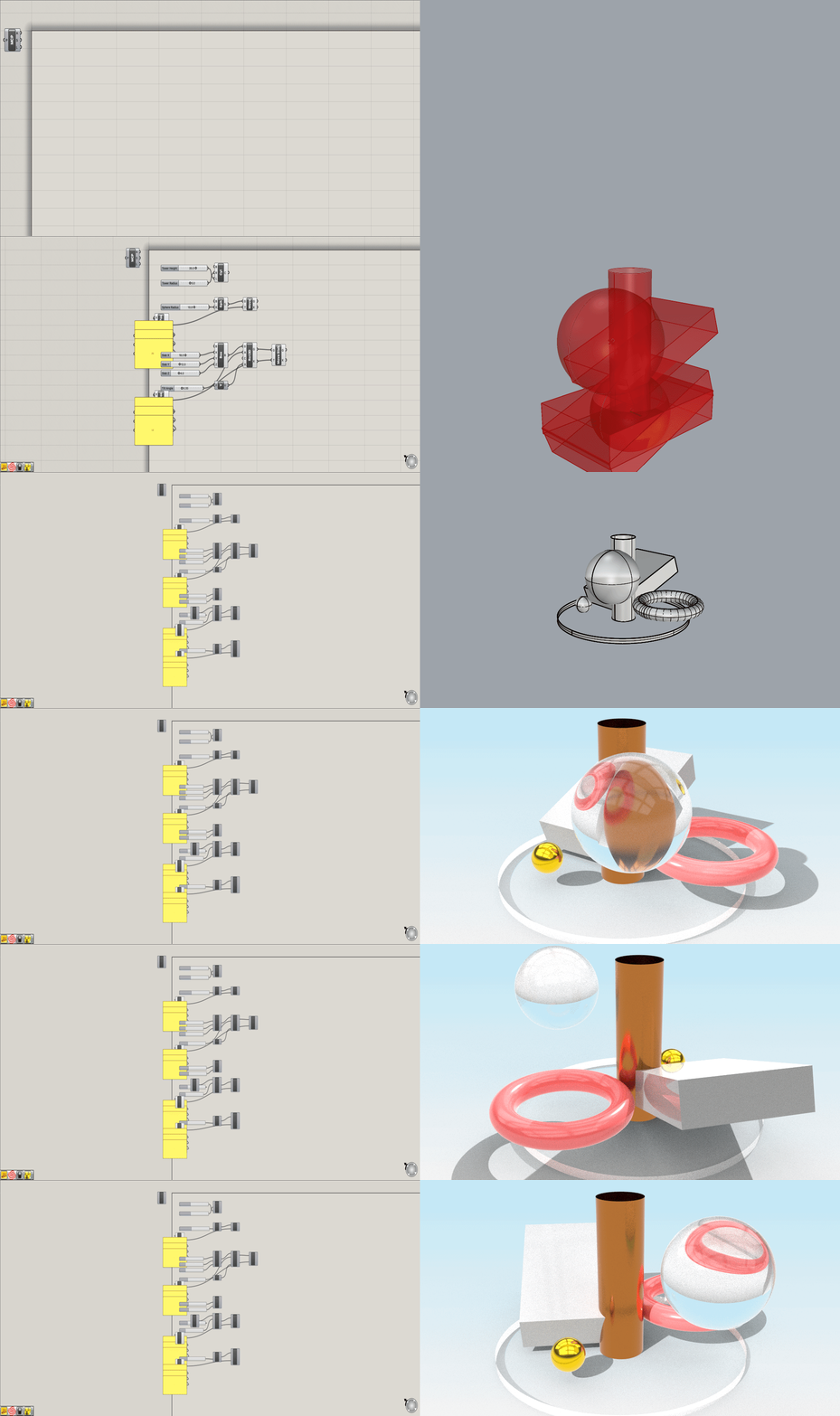
The AI builds everything autonomously — creating parametric geometry in Grasshopper, baking to Rhino, applying PBR materials, configuring the render environment and lighting, and capturing a smooth orbiting animation.
Scripting
Call tools directly from Python or any MCP client library:
from mcp import ClientSession

async with ClientSession(transport) as session:
    # Add a slider and circle
    slider = await session.call_tool('gh_canvas', {
        'action': 'add', 'type': 'Number Slider', 'x': 50, 'y': 50
    })
    circle = await session.call_tool('gh_canvas', {
        'action': 'add', 'type': 'Curve/Circle', 'x': 200, 'y': 50
    })

    # Connect slider output to circle radius
    await session.call_tool('gh_wire', {
        'action': 'connect',
        'sourceId': slider['id'], 'sourceParam': '0',
        'targetId': circle['id'], 'targetParam': 'R'
    })
See the MCP Python SDK for transport setup and client details.
Cordyceps provides 7 tools with over 100 actions — consolidated to minimize context window usage. Related operations are grouped under a single tool with an action parameter.
Grasshopper
Rhino
Documentation
Cordyceps exposes guides and patterns to MCP clients as resources. Your AI assistant can read these automatically when it needs guidance on data trees, type systems, component patterns, or rendering workflows.
Browse the documentation directly: src/Cordyceps/Knowledge/
Troubleshooting
Building
dotnet build src/Cordyceps/Cordyceps.csproj -c Release
Only Release builds are supported — a Debug build (the dotnet build default) fails with an error.
Changelog · Inspired by grasshopper-mcp by Alfred Chen · MIT License