RevitMCP
RevitMCP is a pyRevit extension plus a Python server that lets AI clients work against a live Revit session.
It supports two ways to use it:
- Web UI at
http://127.0.0.1:8000
- Local MCP over stdio for clients such as Claude Desktop, Claude Code, and Codex
Repository layout note: this repository root is the pyRevit extension root. If you install from source manually, the checkout directory itself should be named RevitMCP.extension.
RevitMCP exposes 46 tools:
Schedule calculated field support currently maps to the public Revit 2024 API. Percentage fields can be added and wired to schedule fields through calculated_fields / add_calculated_fields. Revit exposes ScheduleFieldType.Formula, but does not expose a public formula-string setter in this API version, so formula text is rejected with an explicit unsupported error instead of silently creating a broken field.
Requirements
- Autodesk Revit
- pyRevit
- Python 3.7+ available as
python if you want to run the external server directly or through a local MCP client. Python 3.13 or older is recommended because some current AI-provider dependencies warn under Python 3.14+.
- A Revit project open while using RevitMCP
Surface Modes
RevitMCP has two server surfaces:
web: browser UI at http://127.0.0.1:8000mcp: stdio server for local MCP clients such as Claude Desktop, Claude Code, and Codex
One server.py process runs one surface at a time.
To switch manually:
python lib\RevitMCP_ExternalServer\server.py --surface web
python lib\RevitMCP_ExternalServer\server.py --surface mcp
If you use the pyRevit launcher, it reads the preferred surface from:
%USERPROFILE%\Documents\RevitMCP\user_data\revitmcp_settings.json
{
  "preferences": {
    "server_surface": "web"
  }
}
If you want both the Web UI and an MCP client at the same time, they need to run as separate processes.
Install RevitMCP
- Install pyRevit: pyRevit installer
- Choose one of these pyRevit extension roots:
%APPDATA%\pyRevit\Extensions%PROGRAMDATA%\pyRevit\Extensions
- Clone this repository directly into a folder named
RevitMCP.extension under that root:
git clone https://github.com/oakplank/RevitMCP.git "%APPDATA%\pyRevit\Extensions\RevitMCP.extension"
- If you download a ZIP instead, extract the repository contents into a folder named
RevitMCP.extension under the same extension root.
- Reload pyRevit or restart Revit.
The folder name matters: pyRevit discovers extensions by folders that end with .extension.
Keep track of the exact RevitMCP.extension folder you install here. Local MCP clients must point to the server.py file inside this same folder. Do not point your client at the pyRevit install folder unless that is actually where this extension is installed.
Enable Revit Routes
- Open Revit.
- Go to
pyRevit -> Settings.
- Enable the Routes server.
- Restart Revit.
- Allow firewall access if Windows asks.
The default Revit Routes port is usually 48884.
Quick Start: Web UI
- Open a Revit project.
- In Revit, click
RevitMCP -> Server -> Launch RevitMCP.
- Open
http://127.0.0.1:8000.
- Add any required model or API settings in the web UI.
- Try:
Get Revit project info
Share the Web UI on Your LAN
By default, the Web UI listens on 127.0.0.1. That only works on the same computer, so a coworker on another machine cannot connect to http://127.0.0.1:8000.
To allow another computer on the same trusted network:
- On the Revit computer, edit:
%USERPROFILE%\Documents\RevitMCP\user_data\revitmcp_settings.json
- Under
servers, set:
{
  "servers": {
    "external_server_host": "0.0.0.0",
    "external_server_port": 8000
  }
}
Keep the rest of the settings file intact.
- Restart the RevitMCP server.
- Find the Revit computer's LAN IP:
ipconfig
Use the IPv4 Address for the active Wi-Fi or Ethernet adapter.
- From the coworker's computer, open:
http://<REVIT_COMPUTER_IPV4>:8000
If the page still does not load, allow python.exe through Windows Defender Firewall on private networks, or add an inbound TCP rule for port 8000.
Do not expose this server on public networks or the open internet. The Web UI is intended for trusted local use.
Quick Start: Claude Desktop
Claude Desktop local MCP is local to one machine. Use this on the same computer that has Revit open, pyRevit installed, and the RevitMCP.extension files available. If a coworker on another computer needs access to your live Revit session, use Share the Web UI on Your LAN instead.
- Install Claude Desktop:
https://claude.ai/download
- In Claude Desktop, go to
Settings -> Developer -> Local MCP Servers -> Edit Config.
- Find the exact
server.py path inside the same RevitMCP.extension folder that pyRevit loads.
If you installed under your user extension root:
$server = "$env:APPDATA\pyRevit\Extensions\RevitMCP.extension\lib\RevitMCP_ExternalServer\server.py"
Test-Path $server
$server
If you installed under the machine-wide extension root:
$server = "$env:PROGRAMDATA\pyRevit\Extensions\RevitMCP.extension\lib\RevitMCP_ExternalServer\server.py"
Test-Path $server
$server
Test-Path must return True. Use the printed absolute path in the Claude config. Do not paste %APPDATA% or %PROGRAMDATA% literally into JSON; use the expanded path such as C:\Users\YourName\AppData\Roaming\....
- Add
revitmcp to your Claude config.
If your Claude config already exists, keep your current preferences and other MCP servers. Only add revitmcp under mcpServers.
If you copy the full example below, update the preferences values to match your own Claude Desktop setup.
{
  "mcpServers": {
    "revitmcp": {
      "command": "python",
      "args": [
        "C:\\Users\\YourName\\AppData\\Roaming\\pyRevit\\Extensions\\RevitMCP.extension\\lib\\RevitMCP_ExternalServer\\server.py",
        "--surface",
        "mcp"
      ]
    }
  },
  "preferences": {
    "chromeExtensionEnabled": true,
    "coworkScheduledTasksEnabled": true,
    "ccdScheduledTasksEnabled": true,
    "sidebarMode": "chat",
    "coworkWebSearchEnabled": true
  }
}
- Replace the example
server.py path with the actual path from step 3.
- If
python does not work, replace it with the full path to python.exe.
- Save the file and fully restart Claude Desktop.
- Re-open
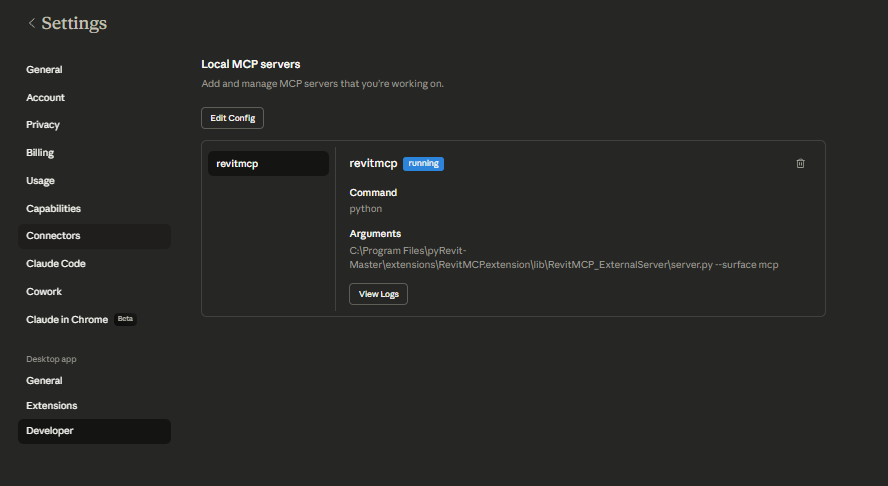
Settings -> Developer -> Local MCP Servers and confirm revitmcp shows running.
- Try:
Get Revit project info
Expected Claude Desktop screen after revitmcp is configured:
Quick Start: Codex
Codex local MCP is local to one machine. Use this on the same computer that has Revit open, pyRevit installed, and the RevitMCP.extension files available. Existing Codex sessions may not hot-load new MCP servers, so restart Codex after adding the server.
- Install or update Codex.
- Find the exact
server.py path inside the same RevitMCP.extension folder that pyRevit loads.
If you installed under your user extension root:
$server = "$env:APPDATA\pyRevit\Extensions\RevitMCP.extension\lib\RevitMCP_ExternalServer\server.py"
Test-Path $server
$server
If you installed under the machine-wide extension root:
$server = "$env:PROGRAMDATA\pyRevit\Extensions\RevitMCP.extension\lib\RevitMCP_ExternalServer\server.py"
Test-Path $server
$server
Test-Path must return True.
- Add
revitmcp to Codex:
codex mcp add revitmcp -- python $server --surface mcp
If python does not work, replace it with the full path to python.exe.
The command writes a Codex MCP entry equivalent to:
[mcp_servers.revitmcp]
command = "python"
args = ['C:\Users\YourName\AppData\Roaming\pyRevit\Extensions\RevitMCP.extension\lib\RevitMCP_ExternalServer\server.py', "--surface", "mcp"]
- Restart Codex.
- Start a new Codex session and try:
Get Revit project info
Troubleshooting
revitmcp does not show in Claude Desktop
- Check that your Claude config is valid JSON.
- Make sure the
server.py path is absolute and exists.
- If
python is not found, use the full path to python.exe.
- Fully quit Claude Desktop from the system tray and reopen it.
- Check
%APPDATA%\Claude\logs.
If the log says can't open file ... RevitMCP.extension\lib\RevitMCP_ExternalServer\server.py, Claude is pointing at a path that does not exist. On the same machine as Claude Desktop, run:
Test-Path "$env:APPDATA\pyRevit\Extensions\RevitMCP.extension\lib\RevitMCP_ExternalServer\server.py"
Test-Path "$env:PROGRAMDATA\pyRevit\Extensions\RevitMCP.extension\lib\RevitMCP_ExternalServer\server.py"
Get-ChildItem "$env:APPDATA\pyRevit\Extensions" -Directory
Get-ChildItem "$env:PROGRAMDATA\pyRevit\Extensions" -Directory
If both Test-Path commands return False, either install/copy the extension to one of those RevitMCP.extension folders or update the Claude config to the real absolute path of server.py in the extension folder pyRevit is actually loading.
revitmcp does not show in Codex
- Run
codex mcp list and confirm revitmcp is listed.
- Make sure the
server.py path is absolute and exists.
- If
python is not found, use the full path to python.exe.
- Restart Codex after changing MCP config.
If the server was added with the wrong path, remove and re-add it:
codex mcp remove revitmcp
codex mcp add revitmcp -- python C:\Users\YourName\AppData\Roaming\pyRevit\Extensions\RevitMCP.extension\lib\RevitMCP_ExternalServer\server.py --surface mcp
- Make sure Revit is open with a project loaded.
- Make sure pyRevit Routes is enabled.
- Restart Revit after enabling Routes.
- Open
View Logs for revitmcp in Claude Desktop, or check the Codex MCP startup output.
- Make sure the MCP client is running on the same machine as Revit. This MCP mode connects to the local Revit Routes server.
Web UI or server startup issues
- Check
%USERPROFILE%\Documents\RevitMCP\server_logs
- Startup log:
server_startup_error.log
- App log:
server_app.log
Coworker cannot open the Web UI
- If the server prints
Running on http://127.0.0.1:8000, it is only listening locally. Follow Share the Web UI on Your LAN above.
- The coworker should use
http://<Revit computer IPv4>:8000, not http://127.0.0.1:8000.
- If Windows prompts for firewall access when the server starts, allow private networks.
- If the terminal only shows a Python 3.14 Pydantic warning and never prints
Running on ..., install Python 3.13 or older and configure RevitMCP to use that interpreter.
License
RevitMCP is licensed under the MIT License. See LICENSE.md.
See CONTRIBUTING.md before submitting patches or pull
requests.